fnf unblocked loading issues
Friday Night Funkin' Unblocked: Fix Loading Issues & Play Smoothly
A practical browser checklist for loading errors, dropped inputs, audio delay, and the limits of mobile play.
Quick answer
Start with the official source and a clean tab
Before changing browser settings, confirm that you are on the creator's official page or a source you can verify. A clean tab separates a real game problem from a broken mirror, stale ad script, or extension conflict.
- Open the official itch.io source in a current browser.
- Use one normal tab first; do not test several mirrors at the same time.
- Do not download an EXE, APK, browser extension, or “unlocker” to fix a browser game.
This page focuses on the problems players actually hit when a browser build does not start cleanly: a black screen, an endless loading state, stutter, or audio that arrives late. It is an original troubleshooting guide, not a rehosted game or a download page.
For a safe starting point, use the creator's official itch.io page. Luma does not host Friday Night Funkin' files, copy its assets, or promise that a third-party mirror will remain available. If a school, workplace, or managed network blocks a game, use an approved route instead of trying to bypass that policy.
Black screen or endless loading
A black canvas usually means the browser has not completed the page scripts or the source itself failed. Give the first load a short moment, then reload once. Repeated refreshes can hide the real cause and make a temporary network delay look like a game bug.
- Check that JavaScript is enabled and that the tab is not in a restricted reader or text-only mode.
- Reload once after closing heavy tabs, video players, or downloads.
- Temporarily disable a content-blocking extension for the verified source if it is safe to do so, then restore it after testing.
- If only a mirror is blank while the official source works, treat the mirror as the problem and leave it.
Stutter, lag, or dropped inputs
Rhythm games expose timing problems quickly. Reduce background work before changing the game itself: close other heavy tabs, stop an active download, and keep the game in a visible foreground tab. A busy device or power-saving mode can make input feel late even when the page loaded correctly.
- Test in a fresh tab with other video and canvas-heavy pages closed.
- Keep the browser and operating system updated enough to support the current page scripts.
- Avoid switching tabs during a song; background throttling can interrupt animation or audio timing.
- If the same device stutters only on one mirror, use the verified source instead of installing a performance “fix”.
Audio is late or out of sync
Audio delay can come from the output device, a backgrounded tab, or the page losing its audio context. First verify the system volume and output, then reload the page in the foreground. Bluetooth devices can add noticeable latency for timing-sensitive play, so compare with the built-in speakers or wired headphones when available.
- Confirm that the tab is not muted and that the intended output device is selected.
- Reload once after returning the game tab to the foreground.
- Compare Bluetooth with built-in speakers or wired headphones before changing game settings.
- If audio is missing only on a third-party copy, do not trust a “codec” or “audio fix” download.
Desktop and mobile controls
Keyboard timing is the safer assumption for a rhythm game. The official browser page and a particular device may not offer the same touch controls, screen size, or performance. Treat mobile play as a device check, not as a promise that every song or control layout is supported.
- On desktop, click the game once before using the documented keyboard controls.
- On mobile, rotate only if the page layout becomes easier to read; do not assume a touch overlay exists.
- If taps do nothing, use a supported keyboard device or return to the official source notes.
- Keep the play area visible and avoid opening system overlays during a song.
What “unblocked” does and does not mean
“Unblocked” is a search label, not proof that a page is official, safe, or authorized. It should not be used to promise access through a school or workplace filter. Luma provides troubleshooting and source context only; it does not bypass network controls or repackage the game.
- Prefer a source that names the creator and gives a clear route to the original page.
- Avoid pages that require an unknown extension, executable, APK, or notification permission.
- Do not paste mirror-provided scripts into the browser console.
- Report a broken or suspicious source instead of trying several download buttons.
When a mirror is the problem
A page that shows a blank rectangle, redirects repeatedly, or places unrelated download buttons around the game is not a good diagnostic baseline. Compare it with the official source once, record the browser and device you used, and stop testing the mirror if the official page works.
- Record the browser, device class, and symptom before changing several variables.
- Use the official source link below to separate source failure from local browser failure.
- Do not copy FNF characters, music, screenshots, HTML5 packages, or mods into a Luma page.
- This Luma experiment has no account, email, photo, audio, or upload step.
Featured Picks
Each recommendation opens a browser player from its detail page with no download required.
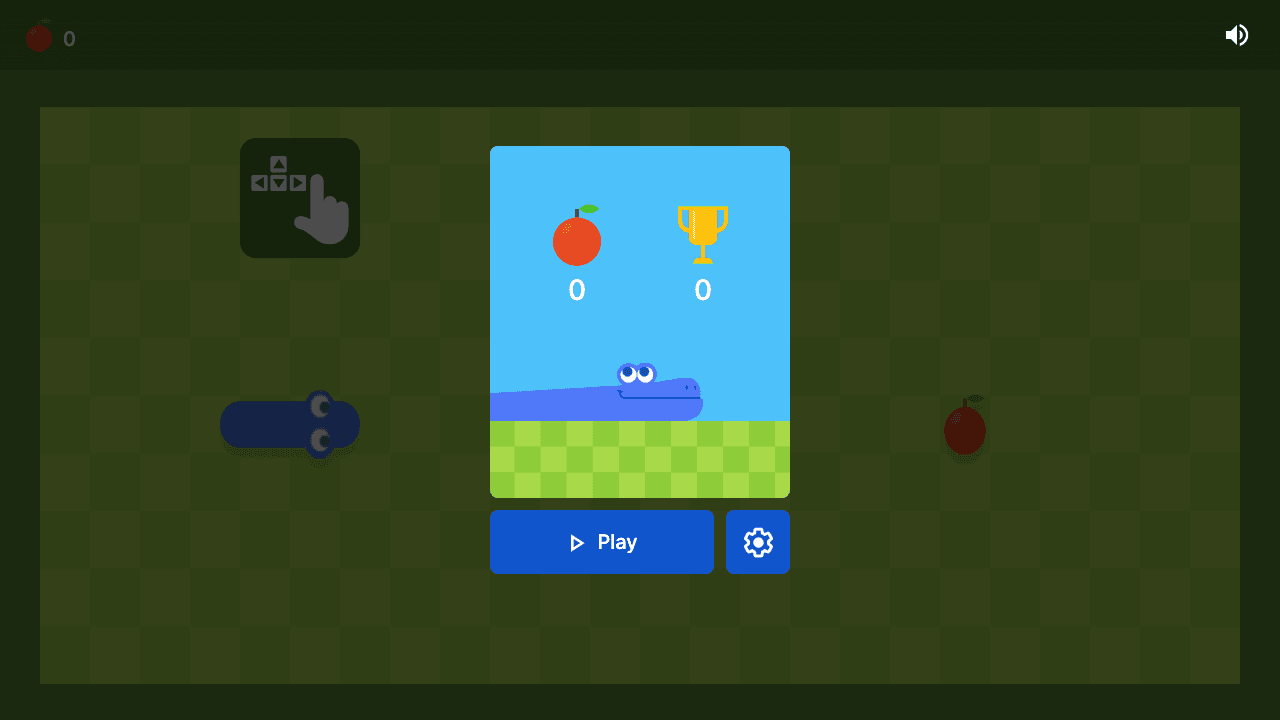
Google Snake
Google Snake is a classic snake-style browser game built around route planning. The score improves when you think one turn ahead and keep escape lanes open.
For a lighter fallback, try standard Google Snake in the browser without installing anything.
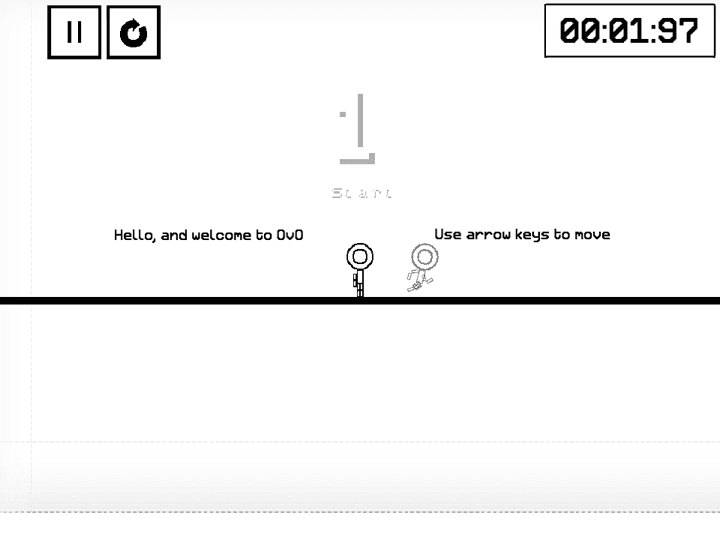
OvO
OvO is a precision parkour platformer where momentum matters more than mashing jump. Clean slides, wall jumps, and dive jumps carry most difficult rooms, while random retries usually hide the real mistake in timing, spacing, or direction input.
If rhythm timing is not working on your device, switch to a short browser platform challenge instead of a random mirror.
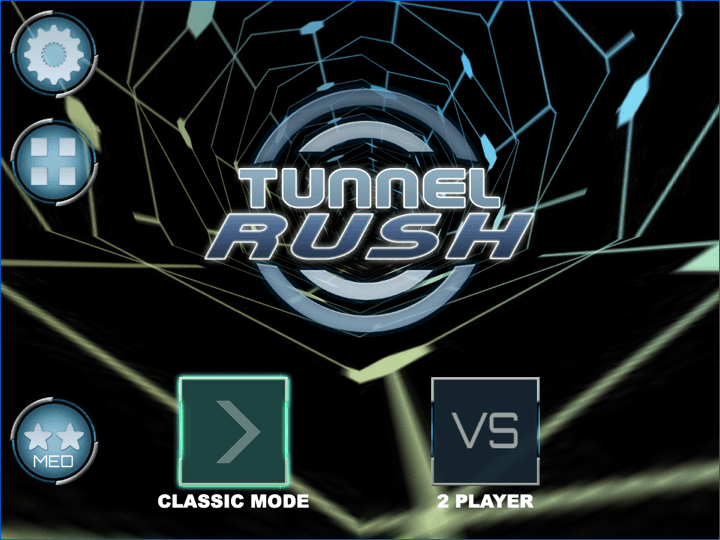
Tunnel Rush
Tunnel Rush is a high-speed reflex game where survival depends on reading shapes early and staying centered before the tunnel speed rises. The strongest runs come from small steering corrections, calm visual focus, and learning repeated obstacle patterns.
For a quick-restart reaction game, try a lightweight alternative with a clear play route.
Frequently Asked Questions
- Why is Friday Night Funkin' stuck on a black screen?
- Check the verified source, JavaScript, one clean tab, and extension conflicts first. If the official source works but a mirror does not, the mirror is the likely cause.
- How do I fix Friday Night Funkin' lag in a browser?
- Close heavy tabs and downloads, keep the game in the foreground, and compare the official source on the same device. Avoid unknown performance downloads or scripts.
- Why is FNF audio delayed?
- Check the selected output, reload in a foreground tab, and compare Bluetooth with built-in speakers or wired headphones. The delay may come from the device rather than the page.
- Can I play Friday Night Funkin' on a phone?
- You can test the official browser page on a phone, but do not assume touch controls or desktop-level timing. If taps do not respond, use a supported keyboard device or follow the source notes.
- Does Luma host an unblocked FNF game?
- No. Luma provides an original troubleshooting guide and a link to the creator source. It does not rehost the game, copy its assets, bypass network policies, or provide download packages.
This is an anonymous interest test for a future original concept. No sign-up, upload, or generated asset is available in this experiment.
Related Guides
Official & Reference Links
Use these external links to verify the game source and creator context; they do not imply a commercial partnership with Luma.
- Friday Night Funkin' on itch.io →
The creator's public source page for checking the current browser build, platform notes, and source context.
- Funkin source repository →
A public project source reference; repository code and game assets can have different usage terms.